
Modern web applications often need to handle secure online payments, subscriptions, and billing workflows. Stripe has become one of the most popular payment platforms thanks to its powerful APIs, excellent documentation, and support for modern frameworks.
In this tutorial, you’ll learn how to integrate Stripe payments into a Nuxt 4 application using:
-
Nuxt Server Routes (Nitro) for secure backend logic
-
Stripe Checkout for PCI-compliant payments
-
Webhooks to handle real-time payment events
-
Environment variables for secret management
-
TypeScript-first patterns throughout
By the end of this guide, you’ll have a production-ready Stripe integration supporting payments, webhook validation, and clean separation between client and server code.
What We’ll Build
We will build a simple but realistic payment flow:
-
A Nuxt 4 frontend with a “Pay with Stripe” button
-
A server route that:
-
Creates a Stripe Checkout Session
-
Redirects the user to Stripe’s hosted payment page
-
-
A Stripe webhook endpoint that listens for:
-
checkout.session.completed -
payment_intent.succeeded
-
-
Success and cancel pages
-
Secure handling of Stripe secrets using Nuxt runtime config
Tech Stack
-
Nuxt 4
-
Stripe API (Latest Version)
-
TypeScript
-
Nuxt Server Routes (Nitro)
-
Stripe Webhooks
-
Stripe CLI (for local testing)
Prerequisites
Before starting, you should have:
-
Node.js 18+
-
Basic knowledge of:
-
Nuxt / Vue
-
JavaScript or TypeScript
-
REST APIs
-
-
A Stripe account (free)
-
Stripe API keys (test mode)
Creating a Nuxt 4 Project
In this section, we’ll create a brand-new Nuxt 4 project configured with TypeScript, ready to integrate Stripe payments and server routes.
1. Create a New Nuxt 4 App
Open your terminal and run:
npx nuxi@latest init nuxt-stripe-paymentsNavigate into the project directory:
cd nuxt-stripe-paymentsInstall dependencies:
npm install💡 Nuxt 4 uses Nitro under the hood for server routes, making it perfect for secure Stripe API calls.
2. Start the Development Server
Run the app locally:
npm run devYour application should now be available at:
http://localhost:3000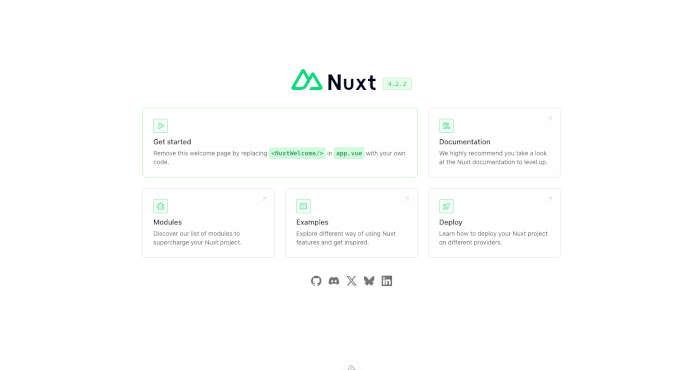
You should see the default Nuxt welcome page.
3. Project Structure Overview
Here’s a quick look at the important folders we’ll be working with:
nuxt-stripe-payments/
├─ app/
│  ├─ pages/
│  │  ├─ index.vue
│  │  ├─ success.vue
│  │  └─ cancel.vue
│  └─ components/
├─ server/
│  ├─ api/
│  │  ├─ create-checkout-session.post.ts
│  │  └─ stripe-webhook.post.ts
├─ public/
├─ nuxt.config.ts
├─ package.json
└─ .env
Key Directories Explained
-
app/pages
Client-side pages (home, success, cancel) -
server/api
Secure server routes for:-
Creating Stripe Checkout sessions
-
Handling Stripe webhooks
-
-
nuxt.config.ts
Nuxt configuration and runtime settings -
.env
Stripe API keys and webhook secrets (never committed)
4. Enable TypeScript (Default)
Nuxt 4 comes with TypeScript enabled by default, so no extra setup is required. All server routes and frontend components will be written using TypeScript.
5. Clean Up the Starter Page (Optional)
Edit app/pages/index.vue:
<template>
  <div class="container">
    <h1>Nuxt 4 Stripe Payments</h1>
    <p>Stripe Checkout integration using Server Routes and Webhooks</p>
  </div>
</template>
This will serve as the base page where we later add the “Pay with Stripe” button.
6. Verify Server Routes Support
Nuxt automatically detects server routes inside the server/api directory.
Create a test endpoint:
mkdir -p server/api
touch server/api/health.get.ts
export default defineEventHandler(() => {
return { status: 'ok' }
})Visit:
http://localhost:3000/api/healthYou should see:
{ "status": "ok" }✅ This confirms your Nuxt 4 project is ready for Stripe server-side integration.
Setting Up Stripe (Dashboard & API Keys)
Before we write any payment code, we need to configure Stripe and obtain the required API keys. This section walks you through creating a Stripe account, enabling test mode, and preparing keys for Nuxt server routes and webhooks.
1. Create a Stripe Account
If you don’t already have one:
-
Go to stripe.com
-
Sign up for a free account
-
Complete the basic onboarding steps
💡 You can fully test payments without adding a bank account by using Stripe’s test mode.
2. Enable Test Mode
Once logged in:
-
Open the Stripe Dashboard
-
Toggle Test mode (top-right corner)
You should now see “Viewing test data” in the dashboard.
3. Get Your API Keys
Navigate to:
Developers → API keys
You’ll see two important keys:
-
Publishable key
Used on the client (safe to expose) -
Secret key
Used on the server (must remain private)
Example (test mode):
Publishable key: pk_test_XXXXXXXXXXXXXXXX
Secret key: sk_test_XXXXXXXXXXXXXXXX
⚠️ Never expose the secret key to the client.
We’ll use it only inside Nuxt server routes.
4. Create a .env File
At the root of your Nuxt project, create a .env file:
touch .envAdd the following variables:
STRIPE_SECRET_KEY=sk_test_XXXXXXXXXXXXXXXX
STRIPE_PUBLISHABLE_KEY=pk_test_XXXXXXXXXXXXXXXX
STRIPE_WEBHOOK_SECRET=whsec_XXXXXXXXXXXXXXXX
The webhook secret will be added later (once we configure webhooks).
5. Configure Nuxt Runtime Config
Edit nuxt.config.ts:
export default defineNuxtConfig({
  runtimeConfig: {
    stripeSecretKey: process.env.STRIPE_SECRET_KEY,
    stripeWebhookSecret: process.env.STRIPE_WEBHOOK_SECRET,
    public: {
      stripePublishableKey: process.env.STRIPE_PUBLISHABLE_KEY
    }
  }
})
Why This Matters
-
runtimeConfig.public
→ Accessible in the client -
runtimeConfig(private)
→ Server-only (secure)
This ensures Stripe secrets never leak to the browser.
6. Restart the Dev Server
Whenever you change .env or nuxt.config.ts, restart Nuxt:
npm run dev7. Test Access to Runtime Config
Server-side (safe)
const config = useRuntimeConfig()
console.log(config.stripeSecretKey)
Client-side (safe)
const config = useRuntimeConfig()
console.log(config.public.stripePublishableKey)
🚫 This will not expose your secret key on the client.
8. Stripe Test Cards (For Later)
Stripe provides test card numbers you’ll use later:
| Card Number | Result |
|---|---|
4242 4242 4242 4242 |
Successful payment |
4000 0000 0000 9995 |
Insufficient funds |
4000 0000 0000 0002 |
Card declined |
-
Any future expiration date
-
Any CVC
-
Any ZIP code
Installing and Initializing Stripe SDK
Now that Stripe keys are configured, we’ll install the official Stripe SDK and initialize it securely inside Nuxt server routes. This keeps sensitive logic and secret keys off the client.
1. Install Stripe SDK
From your project root, run:
npm install stripe
This installs the official Stripe Node.js SDK, which we’ll use in server routes and webhook handlers.
💡 We do not install Stripe.js on the client because we’ll use Stripe Checkout, which handles the UI and PCI compliance for us.
2. Create a Stripe Utility (Server-Side)
To avoid repeating Stripe initialization, create a reusable helper.
Create a new folder and file:
mkdir -p server/utils
touch server/utils/stripe.ts
Add the following code:
import Stripe from 'stripe'

export const stripe = new Stripe(
    useRuntimeConfig().stripeSecretKey,
    {
        apiVersion: '2025-11-17.clover',
        typescript: true
    }
)
Why This Pattern?
-
Centralized Stripe configuration
-
Uses Nuxt’s runtime config
-
Type-safe with TypeScript
-
Easy to import in multiple server routes
3. Verify Stripe Initialization
Create a quick test endpoint:
touch server/api/stripe-test.get.tsimport { stripe } from '../utils/stripe'
export default defineEventHandler(async () => {
const products = await stripe.products.list({ limit: 1 })
return { success: true, products }
})Visit:
http://localhost:3000/api/stripe-testIf everything is set up correctly, you’ll receive a JSON response with Stripe product data (or an empty list).
✅ This confirms:
-
Stripe SDK works
-
The secret key is loaded
-
Server routes are correctly configured
4. Common Errors & Fixes
❌ Invalid API Key provided
-
Check
.envfile -
Ensure
STRIPE_SECRET_KEYis correct -
Restart dev server
❌ useRuntimeConfig is not defined
-
Make sure this code runs server-side only
-
Stripe utility must stay inside
server/
5. Why Not Initialize Stripe on the Client?
-
Exposes secret keys ❌
-
Violates Stripe security guidelines ❌
-
Fails PCI compliance ❌
Using Nuxt server routes ensures:
-
Secrets stay safe
-
Payments are secure
-
Logic is production-ready
Creating a Stripe Checkout Server Route
In this section, we’ll create a secure Nuxt server route that generates a Stripe Checkout Session.
This endpoint will be called from the frontend when the user clicks “Pay with Stripe”.
1. Why Use a Server Route?
Stripe Checkout sessions must be created server-side because they require:
-
The Stripe Secret Key
-
Secure price and payment configuration
-
Protection against client-side tampering
Nuxt server routes (Nitro) are perfect for this.
2. Create the Checkout Session API Route
Create the following file:
touch server/api/create-checkout-session.post.ts3. Implement the Checkout Session Logic
import { stripe } from '../utils/stripe'

export default defineEventHandler(async (event) => {
  const body = await readBody(event)

  const { amount, currency = 'usd' } = body

  if (!amount) {
    throw createError({
      statusCode: 400,
      statusMessage: 'Amount is required'
    })
  }

  const session = await stripe.checkout.sessions.create({
    payment_method_types: ['card'],
    mode: 'payment',
    line_items: [
      {
        price_data: {
          currency,
          product_data: {
            name: 'Nuxt 4 Stripe Payment'
          },
          unit_amount: amount
        },
        quantity: 1
      }
    ],
    success_url: `${getRequestURL(event).origin}/success?session_id={CHECKOUT_SESSION_ID}`,
    cancel_url: `${getRequestURL(event).origin}/cancel`
  })

  return {
    url: session.url
  }
})
4. Important Notes
Amount Format
Stripe expects unit_amount in the smallest currency unit:
-
$10.00→1000 -
€5.50→550
We’ll handle this cleanly from the frontend later.
5. Test the Endpoint Manually
You can test this API using curl:
curl -X POST http://localhost:3000/api/create-checkout-session \
  -H "Content-Type: application/json" \
  -d '{ "amount": 1000 }'
You should receive:
{
  "url": "https://checkout.stripe.com/..."
}
Opening this URL in the browser will redirect you to Stripe Checkout.
6. Security Considerations (Important)
⚠️ Do NOT trust client-sent prices in production
For real apps:
-
Use predefined Stripe Prices
-
Store product IDs in the backend
-
Validate purchase data server-side
For tutorial clarity, we’re using a fixed product configuration.
7. Folder Structure (Updated)
server/
├─ api/
│  ├─ create-checkout-session.post.ts
│  ├─ stripe-test.get.ts
│  └─ health.get.ts
└─ utils/
   └─ stripe.ts
Building the Payment UI (Pay with Stripe Button)
Now that the server route is ready, we’ll create a simple frontend payment UI that calls our Stripe Checkout API and redirects the user to Stripe’s hosted payment page.
1. Update the Home Page
Edit app/pages/index.vue:
<script setup lang="ts">
const isLoading = ref(false)

const payWithStripe = async () => {
  try {
    isLoading.value = true

    const { url } = await $fetch<{ url: string }>('/api/create-checkout-session', {
      method: 'POST',
      body: {
        amount: 1000, // $10.00
        currency: 'usd'
      }
    })

    if (url) {
      window.location.href = url
    }
  } catch (error) {
    console.error('Stripe payment error:', error)
    alert('Payment failed. Please try again.')
  } finally {
    isLoading.value = false
  }
}
</script>

<template>
  <div class="container">
    <h1>Nuxt 4 Stripe Payments</h1>
    <p>Secure Stripe Checkout using Server Routes</p>

    <button
      @click="payWithStripe"
      :disabled="isLoading"
      class="pay-button"
    >
      {{ isLoading ? 'Redirecting...' : 'Pay $10 with Stripe' }}
    </button>
  </div>
</template>

<style scoped>
.container {
  min-height: 100vh;
  display: flex;
  flex-direction: column;
  align-items: center;
  justify-content: center;
  gap: 16px;
}

.pay-button {
  padding: 12px 24px;
  font-size: 16px;
  background: #635bff;
  color: white;
  border: none;
  border-radius: 6px;
  cursor: pointer;
}

.pay-button:disabled {
  opacity: 0.6;
  cursor: not-allowed;
}
</style>
2. How This Works
-
User clicks Pay with Stripe
-
Frontend calls:
POST /api/create-checkout-session -
Server creates a Stripe Checkout Session
-
Server returns a
session.url -
Browser redirects to Stripe Checkout
✔ No sensitive data on the client
✔ PCI-compliant
✔ Production-ready flow
3. Test the Payment Flow
-
Open:
http://localhost:3000 -
Click Pay $10 with Stripe
-
You should be redirected to Stripe Checkout
-
Use test card:
4242 4242 4242 4242
After completing payment, you’ll be redirected to:
/success?session_id=...Or /cancel if you abort.
4. Create Success & Cancel Pages
app/pages/success.vue
<template>
  <div class="container">
    <h1>Payment Successful 🎉</h1>
    <p>Thank you for your payment.</p>
    <NuxtLink to="/">Go back home</NuxtLink>
  </div>
</template>
app/pages/cancel.vue
<template>
  <div class="container">
    <h1>Payment Cancelled</h1>
    <p>Your payment was not completed.</p>
    <NuxtLink to="/">Try again</NuxtLink>
  </div>
</template>
5. UX Improvements (Optional)
-
Show price dynamically
-
Disable multiple clicks
-
Add loading spinner
-
Handle server errors more gracefully
Implementing Stripe Webhooks in Nuxt Server Routes
Stripe webhooks allow your application to receive trusted, real-time events directly from Stripe—such as when a payment succeeds or fails.
This is the only reliable way to confirm payments in production.
In this section, we’ll create a secure webhook endpoint in Nuxt 4 and prepare it to receive Stripe events.
1. Why Webhooks Are Required
Client redirects (success/cancel pages) are not reliable because:
-
Users can close the browser
-
Redirects can be spoofed
-
Network interruptions can occur
✅ Webhooks are server-to-server and cryptographically signed, making them the source of truth.
2. Webhook Flow Overview
-
Stripe sends an event to your webhook URL
-
Nuxt server route receives the request
-
Signature is verified using the webhook secret
-
Event is processed (e.g. payment completed)
-
Your app updates the database/triggers logic
3. Create the Webhook Endpoint
Create the webhook route:
touch server/api/stripe-webhook.post.ts4. Disable Body Parsing (Important!)
Stripe requires access to the raw request body for signature verification.
Nuxt (Nitro) supports this via readRawBody.
5. Implement the Webhook Handler
import { stripe } from '../utils/stripe'
import type Stripe from 'stripe'

export default defineEventHandler(async (event) => {
  const config = useRuntimeConfig()

  const signature = getHeader(event, 'stripe-signature')
  if (!signature) {
    throw createError({
      statusCode: 400,
      statusMessage: 'Missing Stripe signature'
    })
  }

  const body = await readRawBody(event)
  if (!body) {
    throw createError({
      statusCode: 400,
      statusMessage: 'Missing request body'
    })
  }

  let stripeEvent: Stripe.Event

  try {
    stripeEvent = stripe.webhooks.constructEvent(
      body,
      signature,
      config.stripeWebhookSecret
    )
  } catch (err: any) {
    console.error('Webhook signature verification failed:', err.message)
    throw createError({
      statusCode: 400,
      statusMessage: 'Invalid Stripe webhook signature'
    })
  }

  // Handle Stripe events
  switch (stripeEvent.type) {
    case 'checkout.session.completed': {
      const session = stripeEvent.data.object as Stripe.Checkout.Session
      console.log('✅ Checkout completed:', session.id)
      break
    }

    case 'payment_intent.succeeded': {
      const paymentIntent = stripeEvent.data.object as Stripe.PaymentIntent
      console.log('💰 Payment succeeded:', paymentIntent.id)
      break
    }

    default:
      console.log(`Unhandled event type: ${stripeEvent.type}`)
  }

  return { received: true }
})
6. Key Security Points
-
✅ Uses raw request body
-
✅ Verifies Stripe signature
-
✅ Uses webhook secret from runtime config
-
❌ Never trust client-side payment status
7. Supported Events (Common)
You can listen to many Stripe events, but these are the most common:
-
checkout.session.completed -
payment_intent.succeeded -
payment_intent.payment_failed -
charge.refunded
You’ll typically update:
-
Orders
-
Subscriptions
-
User entitlements
-
Email notifications
8. Updated Project Structure
server/
├─ api/
│  ├─ create-checkout-session.post.ts
│  ├─ stripe-webhook.post.ts
│  ├─ stripe-test.get.ts
│  └─ health.get.ts
└─ utils/
   └─ stripe.ts
Testing Webhooks Locally with Stripe CLI
Stripe webhooks are easy to test locally using the Stripe CLI, which securely forwards real Stripe events to your Nuxt server. This is essential for validating webhook logic before going live.
1. Install Stripe CLI
macOS (Homebrew)
brew install stripe/stripe-cli/stripe
Windows (Chocolatey)
choco install stripe
Linux
Download from stripe.com/docs/stripe-cli
2. Log in to Stripe CLI
Authenticate the CLI with your Stripe account:
stripe loginThis opens a browser window to authorize the CLI.
3. Start Webhook Forwarding
Run the following command:
stripe listen --forward-to localhost:3000/api/stripe-webhookYou’ll see output like:
> Ready! Your webhook signing secret is whsec_XXXXXXXXXXXX👉 Copy this webhook secret and update your .env file:
STRIPE_WEBHOOK_SECRET=whsec_XXXXXXXXXXXXRestart Nuxt after updating .env:
npm run dev4. Trigger Test Events
In a new terminal window, run:
stripe trigger checkout.session.completedYou should see logs in your Nuxt server console:
✅ Checkout completed: cs_test_...Try another event:
stripe trigger payment_intent.succeeded5. End-to-End Test (Recommended)
-
Keep Stripe CLI running
-
Open
http://localhost:3000 -
Click Pay with Stripe
-
Complete payment using:
4242 4242 4242 4242 -
Watch webhook logs appear in your terminal
-
✅ This confirms:
-
Checkout flow works
-
Webhook receives real Stripe events
-
Signature verification is correct
6. Common Issues & Fixes
❌ No webhook endpoint configured
-
Ensure Stripe CLI is running
-
Check forwarding URL
❌ Invalid webhook signature
-
Make sure
STRIPE_WEBHOOK_SECRETmatches the CLI output -
Restart Nuxt after env changes
❌ readRawBody is empty
-
Ensure you’re using
readRawBody(event) -
Do not use
readBody()in webhooks
7. Simulating Other Events
You can trigger many events:
stripe trigger payment_intent.payment_failed
stripe trigger charge.refunded
stripe trigger customer.subscription.created
Production Deployment Considerations
Before going live with Stripe payments, there are several critical production concerns you must address to ensure security, reliability, and correctness. This section covers best practices for deploying your Nuxt 4 + Stripe integration safely.
1. Switch to Live Mode
In the Stripe Dashboard:
-
Toggle Live mode
-
Generate Live API keys
-
pk_live_... -
sk_live_...
-
Update your production environment variables:
STRIPE_SECRET_KEY=sk_live_XXXXXXXXXXXXXXXX
STRIPE_PUBLISHABLE_KEY=pk_live_XXXXXXXXXXXXXXXX
STRIPE_WEBHOOK_SECRET=whsec_XXXXXXXXXXXXXXXX
⚠️ Never reuse test keys in production.
2. Configure Webhooks in Stripe Dashboard
In Developers → Webhooks:
-
Click Add endpoint
-
Endpoint URL:
https://yourdomain.com/api/stripe-webhook -
Select events:
-
checkout.session.completed -
payment_intent.succeeded -
payment_intent.payment_failed -
charge.refunded
-
Copy the webhook signing secret and update your production env config.
3. Use Stripe Prices (Recommended)
❌ Avoid dynamically sending amounts from the client.
✅ Instead:
-
Create Products & Prices in Stripe Dashboard
-
Store
price_idin your backend -
Reference price IDs in Checkout Sessions
Example:
line_items: [
  {
    price: 'price_123456',
    quantity: 1
  }
]
This prevents price manipulation.
4. Idempotency & Event Deduplication
Stripe may retry webhook events.
Best practice:
-
Store
event.idin your database -
Ignore already-processed events
if (await hasProcessedEvent(event.id)) return5. Secure Environment Variables
❌ Never commit .env files
Use platform secrets instead:
-
Vercel: Environment Variables
-
Netlify: Site Environment Variables
-
Docker/Kubernetes: Secrets
6. Logging & Monitoring
In production, log:
-
Webhook failures
-
Signature verification errors
-
Payment lifecycle events
Tools:
-
Sentry
-
Datadog
-
Logtail
-
Cloud provider logs
7. HTTPS Is Mandatory
Stripe requires HTTPS for:
-
Checkout redirects
-
Webhook endpoints
Ensure your domain has:
-
TLS enabled
-
Valid SSL certificate
8. Handling Business Logic
Webhooks are where you should:
-
Mark orders as paid
-
Activate subscriptions
-
Grant user access
-
Send confirmation emails
❌ Never rely on success page alone.
9. Rate Limiting & Security
Protect server routes:
-
Add rate limiting for Checkout creation
-
Validate request origins if needed
-
Never expose internal Stripe IDs to clients
10. Test Before Going Live
Before launch:
-
Complete at least one real payment (small amount)
-
Refund it
-
Verify webhook handling
-
Verify logs and database updates
Security Best Practices & Conclusion
In this final section, we’ll summarize key security best practices for Stripe payments in Nuxt 4 and wrap up the tutorial with clear takeaways.
Security Best Practices (Checklist)
1. Never Expose Secret Keys
-
Keep
sk_*andwhsec_*keys server-only -
Use Nuxt
runtimeConfigcorrectly -
Never reference secret keys in client code
2. Always Use Webhooks for Payment Confirmation
-
Redirects are not proof of payment
-
Trust only:
-
checkout.session.completed -
payment_intent.succeeded
-
-
Handle retries and duplicate events
3. Validate and Control Prices
-
❌ Do not trust client-sent amounts
-
✅ Use Stripe Products & Prices
-
Keep business logic on the server
4. Verify Webhook Signatures
-
Use
readRawBody -
Validate with
stripe.webhooks.constructEvent -
Reject invalid signatures immediately
5. Use HTTPS Everywhere
-
Mandatory for Stripe Checkout and webhooks
-
Required in production environments
6. Protect Checkout Endpoints
-
Add rate limiting
-
Authenticate users if required
-
Log abnormal behavior
7. Separate Environments
-
Test vs Live keys
-
Different webhook endpoints
-
Different databases if possible
What You’ve Built
By following this tutorial, you’ve successfully implemented:
✅ Stripe Checkout with Nuxt 4
✅ Secure server routes using Nitro
✅ Type-safe Stripe SDK integration
✅ Webhook handling with signature verification
✅ Local webhook testing with Stripe CLI
✅ Production-ready deployment practices
Where to Go Next
To extend this integration, consider adding:
-
Subscriptions & recurring payments
-
Customer portal
-
Invoices & receipts
-
Payment history dashboard
-
Stripe Elements (custom UI)
-
Database-backed orders (Prisma, Drizzle, etc.)
Final Thoughts
Stripe and Nuxt 4 make a powerful combination for building secure, scalable payment systems. By keeping all sensitive logic on the server and relying on webhooks for confirmation, you ensure your application is both safe and production-ready.
If this tutorial helped you, feel free to share it or expand it with advanced Stripe features 🚀
You can find the full source code on our GitHub.
That's just the basics. If you need more deep learning about Nuxt.js, you can take the following cheap course:
- Nuxt 3 & Supabase Mastery: Build 2 Full-Stack Apps
- Build Web Apps with Nuxt.js 3: Master TypeScript & API [New]
- The Nuxt 3 Bootcamp - The Complete Developer Guide
- Complete Nuxt.js Course (EXTRA React)
- The Complete NUXT 3 Bootcamp: Full-Stack Guide
- Nuxt 3 Authentication with Laravel Sanctum:A Practical Guide
- Learn How to Make Your Nuxt 3 App SEO-Friendly
- Headless Prestashop with Nuxt JS
Thanks!