Authentication is one of the most essential parts of any modern web application. With Next.js 14 and the App Router, the recommended authentication solution is NextAuth.js (Auth.js) — a flexible, secure, and easy-to-integrate library designed specifically for Next.js.
What You’ll Learn
In this tutorial, you will learn how to:
-
Implement Google, GitHub, and Credentials authentication
-
Use JWT and session-based auth with NextAuth
-
Protect pages, API routes, and layouts
-
Implement role-based access control (RBAC)
-
Build a clean login UI
-
Deploy to Vercel seamlessly
Why NextAuth.js for Next.js 14?
-
Zero-config OAuth integrations
-
Designed for Server Components and App Router
-
Secure session handling via JWT
-
Works with or without a database
-
Extensible with callbacks
What We’re Building
A complete authentication system with:
-
Login & logout
-
OAuth providers
-
Credentials provider
-
Protected pages
-
Role-based access
-
Session-aware UI
Project Setup (Next.js 14)
In this section, you’ll set up a brand-new Next.js 14 project using the App Router, install NextAuth.js, and prepare the base folder structure for the authentication system.
1. Create a New Next.js 14 Project
Run the following command to generate your project:
npx create-next-app@latest nextauth-guide --ts
Follow the prompts (recommended values):
-
TypeScript: Yes
-
ESLint: Yes
-
Tailwind CSS: Optional (recommended for styling)
-
App Router: Yes
-
Import Alias: Yes (
@/*)
Move into the project directory:
cd nextauth-guide
2. Install NextAuth.js (Auth.js)
npm install next-authThis installs the core authentication library used throughout the tutorial.
3. Required Folder Structure
Next.js 14 uses the App Router, so your API routes live under app/api.
Create the following folder:
app/
 └─ api/
     └─ auth/
         └─ [...nextauth]/
             └─ route.ts
Full path:
app/api/auth/[...nextauth]/route.tsWe’ll fill this file in Section 3.
4. Add Environment Variables
Create a .env.local file at the root:
NEXTAUTH_SECRET=your-random-secret
NEXTAUTH_URL=http://localhost:3000
To generate a strong secret:
YEebQUBwDV5zHP0SqbzggCd0Mx7DN8wydcD3UfbMyaw=5. Start the Development Server
npm run devNavigate to:
http://localhost:3000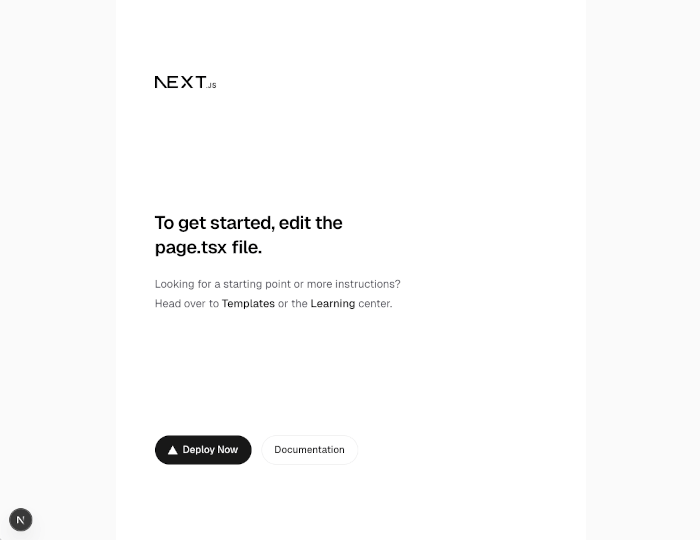
Your base Next.js 14 application is now ready.
Configuring NextAuth.js
In this section, you’ll create the main NextAuth configuration using the App Router in Next.js 14. This includes setting up the /api/auth/[...nextauth] route—your authentication engine.
1. Create the NextAuth Route
Inside:
app/api/auth/[...nextauth]/route.tsAdd the following:
import NextAuth from "next-auth";
import GoogleProvider from "next-auth/providers/google";
import GitHubProvider from "next-auth/providers/github";
import CredentialsProvider from "next-auth/providers/credentials";

const handler = NextAuth({
  providers: [
    // Google OAuth Provider
    GoogleProvider({
      clientId: process.env.GOOGLE_CLIENT_ID!,
      clientSecret: process.env.GOOGLE_CLIENT_SECRET!,
    }),

    // GitHub OAuth Provider
    GitHubProvider({
      clientId: process.env.GITHUB_CLIENT_ID!,
      clientSecret: process.env.GITHUB_CLIENT_SECRET!,
    }),

    // Credentials Provider (Email + Password)
    CredentialsProvider({
      name: "Credentials",
      credentials: {
        email: { label: "Email", type: "email" },
        password: { label: "Password", type: "password" },
      },
      async authorize(credentials) {
        // Replace with real DB lookup
        if (
          credentials?.email === "[email protected]" &&
          credentials?.password === "password123"
        ) {
          return {
            id: "1",
            name: "Admin User",
            email: "[email protected]",
            role: "admin",
          };
        }

        return null; // Authentication failed
      },
    }),
  ],

  session: {
    strategy: "jwt",
  },

  pages: {
    signIn: "/login", // We'll build this later
  },

  callbacks: {
    async jwt({ token, user }) {
      // Add user data to JWT on login
      if (user) {
        token.role = (user as any).role ?? "user";
      }
      return token;
    },

    async session({ session, token }) {
      // Expose token fields to session
      (session.user as any).role = token.role;
      return session;
    },
  },
});

export { handler as GET, handler as POST };
2. Add OAuth Environment Variables
Update .env.local:
GOOGLE_CLIENT_ID=your-google-client-id
GOOGLE_CLIENT_SECRET=your-google-client-secret

GITHUB_CLIENT_ID=your-github-client-id
GITHUB_CLIENT_SECRET=your-github-client-secret
We'll configure Google & GitHub later in Section 4.
3. Understanding the Config
✔ Providers
Where you define OAuth providers or Credentials for login.
✔ Session Strategy
Using JWT avoids needing a database unless you want it.
✔ Callbacks
Let you customize:
-
jwt() — runs on login; lets you store user role or metadata
-
session() — controls what session exposes to the UI
✔ Exports
Important for App Router:
export { handler as GET, handler as POST };NextAuth handles both GET/POST requests for auth.
4. Test Route
Go to:
http://localhost:3000/api/auth/signinYou should now see the default NextAuth sign-in screen.
Adding Authentication Providers
Now that your base NextAuth.js configuration is ready, let’s add and configure multiple authentication providers:
-
Google OAuth
-
GitHub OAuth
-
Credentials (Email + Password)
This section walks you through obtaining OAuth credentials, updating environment variables, and understanding how each provider works in Next.js 14.
1. Google OAuth Provider Setup
Step 1 — Go to Google Cloud Console
https://console.cloud.google.com/
Step 2 — Create or select a project
Step 3 — Enable OAuth consent screen
-
Choose External
-
Add app name, email, and required scopes (email, profile)
Step 4 — Create OAuth Credentials
Navigate to:
APIs & Services → Credentials → Create Credentials → OAuth client IDChoose:
-
Application type: Web application
-
Add Authorized redirect URI:
http://localhost:3000/api/auth/callback/googleStep 5 — Copy Client ID and Secret
Add them to .env.local:
GOOGLE_CLIENT_ID=your-google-client-id
GOOGLE_CLIENT_SECRET=your-google-client-secret
2. GitHub OAuth Provider Setup
Step 1 — Go to GitHub Developer Settings
https://github.com/settings/developers
Step 2 — Create a new OAuth app
-
Homepage URL:
http://localhost:3000-
Authorization callback URL:
http://localhost:3000/api/auth/callback/github
Step 3 — Generate Client ID and Client Secret
Update .env.local:
GITHUB_CLIENT_ID=your-github-client-id
GITHUB_CLIENT_SECRET=your-github-client-secret
3. Credentials Provider (Email + Password)
The Credentials provider allows custom login, such as:
-
Database lookup
-
Hashed passwords
-
Admin accounts
-
Multi-role users
-
Username + password
Your current configuration contains a simple example:
CredentialsProvider({
  name: "Credentials",
  credentials: {
    email: { label: "Email", type: "email" },
    password: { label: "Password", type: "password" },
  },
  async authorize(credentials) {
    if (
      credentials?.email === "[email protected]" &&
      credentials?.password === "password123"
    ) {
      return {
        id: "1",
        name: "Admin User",
        email: "[email protected]",
        role: "admin",
      };
    }
    return null;
  },
}),
Later, we’ll integrate this with Prisma + PostgreSQL for real database users.
4. Update the NextAuth Configuration (Recap)
Your provider section now includes:
providers: [
  GoogleProvider({...}),
  GitHubProvider({...}),
  CredentialsProvider({...}),
]
No additional changes are required unless you want custom sign-in pages, which we will build in Section 9.
5. Test Sign-In Providers
After restarting the server (npm run dev), visit:
http://localhost:3000/api/auth/signinYou should now see:
-
Continue with Google
-
Continue with GitHub
-
Credentials Login form
Using Sessions in Server & Client Components
Now that authentication works, it’s time to use sessions throughout your Next.js 14 app.
NextAuth.js provides two main ways to access session data:
-
Server Components:
getServerSession() -
Client Components:
useSession()
You’ll learn both patterns and see real-world UI examples.
1. Accessing Sessions in Server Components
In the App Router, layouts, pages, and server components can fetch the session without client-side JS.
Example: app/page.tsx
import { getServerSession } from "next-auth";
import { authOptions } from "@/app/api/auth/[...nextauth]/authOptions"; // we will create this export later

export default async function Home() {
  const session = await getServerSession(authOptions);

  return (
    <main>
      <h1>Welcome to the App</h1>
      {session ? (
        <p>Signed in as {session.user?.email}</p>
      ) : (
        <p>You are not signed in.</p>
      )}
    </main>
  );
}
✔ Why this is powerful
-
No flashing UI
-
No client hydration required
-
Perfect for protected pages
2. Accessing Sessions in Client Components
To use useSession(), mark your component as a Client Component:
"use client";

import { useSession, signIn, signOut } from "next-auth/react";

export default function UserButton() {
  const { data: session, status } = useSession();

  if (status === "loading") return <p>Loading...</p>;

  return session ? (
    <div>
      <p>Hello, {session.user?.name}</p>
      <button onClick={() => signOut()}>Sign out</button>
    </div>
  ) : (
    <button onClick={() => signIn()}>Sign in</button>
  );
}
When to use Client Components?
-
Navbars with session-aware UI
-
Login/logout buttons
-
User menus
3. Client + Server Mixed UI Example (Navbar)
Create: components/Navbar.tsx
import UserButton from "./UserButton";

export default function Navbar() {
  return (
    <nav className="p-4 flex justify-between border-b">
      <h2 className="font-bold">NextAuth Guide</h2>
      <UserButton /> {/* This is a Client Component */}
    </nav>
  );
}
Then include in your root layout:
app/layout.tsx
import Navbar from "./components/Navbar";
import { ReactNode } from "react";

export default function RootLayout({ children }: { children: ReactNode }) {
  return (
    <html lang="en">
      <body>
        <Navbar />
        {children}
      </body>
    </html>
  );
}
4. Protecting Server Components Using Sessions
Example: Only logged-in users can view /dashboard.
app/dashboard/page.tsx
import { redirect } from "next/navigation";
import { getServerSession } from "next-auth";
import { authOptions } from "@/app/api/auth/[...nextauth]/authOptions";

export default async function DashboardPage() {
  const session = await getServerSession(authOptions);

  if (!session) redirect("/login");

  return (
    <div>
      <h1>Dashboard</h1>
      <p>Welcome, {session.user?.name}</p>
    </div>
  );
}
5. Exporting authOptions for Reuse
Create a separate export so you can reuse NextAuth config anywhere:
Step 1: Move the config out of the route
In:
app/api/auth/[...nextauth]/authOptions.ts
import GoogleProvider from "next-auth/providers/google";
import GitHubProvider from "next-auth/providers/github";
import CredentialsProvider from "next-auth/providers/credentials";
import type { NextAuthOptions } from "next-auth";

export const authOptions: NextAuthOptions = {
  providers: [
    GoogleProvider({
      clientId: process.env.GOOGLE_CLIENT_ID!,
      clientSecret: process.env.GOOGLE_CLIENT_SECRET!,
    }),
    GitHubProvider({
      clientId: process.env.GITHUB_CLIENT_ID!,
      clientSecret: process.env.GITHUB_CLIENT_SECRET!,
    }),
    CredentialsProvider({
      name: "Credentials",
      credentials: {
        email: { label: "Email", type: "email" },
        password: { label: "Password", type: "password" },
      },
      async authorize(credentials) {
        if (
          credentials?.email === "[email protected]" &&
          credentials?.password === "password123"
        ) {
          return {
            id: "1",
            name: "Admin User",
            email: "[email protected]",
            role: "admin",
          };
        }
        return null;
      },
    }),
  ],
  session: { strategy: "jwt" },
  pages: { signIn: "/login" },
  callbacks: {
    async jwt({ token, user }) {
      if (user) token.role = (user as any).role;
      return token;
    },
    async session({ session, token }) {
      (session.user as any).role = token.role;
      return session;
    },
  },
};
Step 2: Import it into the route
route.ts
import NextAuth from "next-auth";
import { authOptions } from "./authOptions";

const handler = NextAuth(authOptions);

export { handler as GET, handler as POST };
Now your entire app can import authOptions.
Protecting Routes & Middleware (NextAuth.js + Next.js 14)
In this section, you’ll learn the correct and modern way to protect pages, layouts, and API routes in Next.js 14 App Router using NextAuth.js.
We'll also add middleware-based redirection, which is the recommended approach for global route protection.
1. Ways to Protect Routes in Next.js 14
There are three official and reliable patterns:
✅ 1. Server Component Protection (getServerSession)
Perfect for protecting pages, dashboards, and admin areas.
✅ 2. Middleware-Based Protection
Protects whole routes or folders before rendering.
✅ 3. API Route Protection
Secures server actions and backend endpoints.
We’ll cover all three.
2. Protecting a Page Using Server Components
For pages like /dashboard, use getServerSession:
app/dashboard/page.tsx
import { redirect } from "next/navigation";
import { getServerSession } from "next-auth";
import { authOptions } from "@/app/api/auth/[...nextauth]/authOptions";

export default async function DashboardPage() {
  const session = await getServerSession(authOptions);

  if (!session) {
    redirect("/login");
  }

  return (
    <div>
      <h1>Dashboard</h1>
      <p>Welcome {session.user?.email}</p>
    </div>
  );
}
✔ Why this method is great:
-
No client-side flash
-
Fully server-rendered
-
Most secure route protection
3. Protecting Sub-Routes Using Layouts
Protect an entire folder, e.g.:
app/admin/
  layout.tsx
  page.tsx
app/admin/layout.tsx
import { redirect } from "next/navigation";
import { getServerSession } from "next-auth";
import { authOptions } from "@/app/api/auth/[...nextauth]/authOptions";
import { ReactNode } from "react";

export default async function AdminLayout({
  children
}: {
  children: ReactNode;
}) {
  const session = await getServerSession(authOptions);

  if (!session || (session.user as any).role !== "admin") {
    redirect("/unauthorized");
  }

  return <>{children}</>;
}
Now everything under /admin requires admin role.
4. Protecting Routes Globally Using Middleware
Middleware lets you protect routes before hitting the page.
Create:
middleware.ts
export { default } from "next-auth/middleware";Protect specific matchers:
export const config = {
  matcher: ["/dashboard/:path*", "/profile/:path*", "/admin/:path*"],
};
This automatically redirects unauthenticated users to /api/auth/signin.
Want a custom login redirect?
export const config = {
  matcher: ["/dashboard/:path*", "/admin/:path*"],
};
In authOptions.pages.signIn, set custom page:
pages: {
  signIn: "/login",
},
5. Custom Middleware Logic (Role-Based Protection)
For advanced checks:
import { withAuth } from "next-auth/middleware";

export default withAuth({
  callbacks: {
    authorized({ token }) {
      // Only allow users with admin role
      return token?.role === "admin";
    },
  },
});

export const config = {
  matcher: ["/admin/:path*"],
};
This fully protects /admin at the middleware layer.
6. Protecting API Routes (App Router API)
Example API route:
app/api/user-info/route.ts
import { NextResponse } from "next/server";
import { getServerSession } from "next-auth";
import { authOptions } from "@/app/api/auth/[...nextauth]/authOptions";

export async function GET() {
  const session = await getServerSession(authOptions);

  if (!session) {
    return NextResponse.json({ error: "Unauthorized" }, { status: 401 });
  }

  return NextResponse.json({
    message: "Private data",
    user: session.user,
  });
}
For POST:
export async function POST(req: Request) {
  const session = await getServerSession(authOptions);

  if (!session) {
    return NextResponse.json({ error: "Unauthorized" }, { status: 401 });
  }

  return NextResponse.json({ ok: true });
}
7. Server Actions Protection (Next.js 14 Feature)
If you're using Server Actions, you must validate sessions:
"use server";

import { getServerSession } from "next-auth";
import { authOptions } from "@/app/api/auth/[...nextauth]/authOptions";

export async function updateProfile(formData: FormData) {
  const session = await getServerSession(authOptions);
  if (!session) throw new Error("Unauthorized");

  // process form...
}
8. Summary: When to Use What
| Use Case | Use This |
|---|---|
| Protect a single page | getServerSession in the page |
Protect folder like /admin/* |
Protected layout |
| Global protection | middleware.ts |
| API route security | getServerSession in the route |
| Role-based protection | Middleware authorized() callback |
Secure API Routes (Next.js 14) & Role-Based Access Control (RBAC)
Now that your application supports protected pages and middleware, it's time to secure API routes, server actions, and implement role-based authorization.
This section ensures your backend cannot be accessed by unauthorized users—even if someone bypasses the UI.
1. Why API Route Protection Matters
Even if your UI hides buttons from unauthorized users, API endpoints are still accessible unless you validate sessions on the server.
This prevents:
-
Direct API calls via Postman / cURL
-
Users accessing admin endpoints
-
Data leaks
Next.js App Router structure:
app/api/
 └─ anything/route.ts
2. Protecting an API Route with getServerSession
Example: Get user profile only if logged in.
app/api/profile/route.ts
import { NextResponse } from "next/server";
import { getServerSession } from "next-auth";
import { authOptions } from "@/app/api/auth/[...nextauth]/authOptions";

export async function GET() {
  const session = await getServerSession(authOptions);

  if (!session) {
    return NextResponse.json({ error: "Unauthorized" }, { status: 401 });
  }

  return NextResponse.json({
    message: "User profile",
    user: session.user,
  });
}
🔐 Output if unauthorized:
{ "error": "Unauthorized" }3. Protecting POST, PUT, DELETE Routes
Example: Update user settings.
export async function POST(req: Request) {
  const session = await getServerSession(authOptions);

  if (!session) {
    return NextResponse.json({ error: "Unauthorized" }, { status: 401 });
  }

  const body = await req.json();
  return NextResponse.json({ updated: true, data: body });
}
4. Adding Role Support to JWT & Session (Recap)
In authOptions.callbacks.jwt:
async jwt({ token, user }) {
  if (user) token.role = (user as any).role ?? "user";
  return token;
}
In session callback:
async session({ session, token }) {
  (session.user as any).role = token.role;
  return session;
}
Now session.user.role is always available.
5. Role-Based API Route Protection
Example: /api/admin/users — only admins may access it.
app/api/admin/users/route.ts
import { NextResponse } from "next/server";
import { getServerSession } from "next-auth";
import { authOptions } from "@/app/api/auth/[...nextauth]/authOptions";

export async function GET() {
  const session = await getServerSession(authOptions);

  if (!session || (session.user as any).role !== "admin") {
    return NextResponse.json({ error: "Forbidden" }, { status: 403 });
  }

  return NextResponse.json({
    message: "Admin users data",
  });
}
🚨 Important Notes
-
403 Forbiddenis correct for authenticated but unauthorized users -
Use
401only for unauthenticated
6. Role-Based Access with Middleware (Stronger Protection)
You can block users before they hit the API route.
middleware.ts
import { withAuth } from "next-auth/middleware";

export default withAuth({
  callbacks: {
    authorized({ token }) {
      return token?.role === "admin";
    },
  },
});

export const config = {
  matcher: ["/api/admin/:path*"],
};
✔ Works for UI & API simultaneously
Now /api/admin/* is fully protected.
7. Protecting Server Actions (Next.js 14)
Server actions must manually verify authentication:
"use server";

import { getServerSession } from "next-auth";
import { authOptions } from "@/app/api/auth/[...nextauth]/authOptions";

export async function deleteUserAction(userId: string) {
  const session = await getServerSession(authOptions);

  if (!session || (session.user as any).role !== "admin") {
    throw new Error("Unauthorized");
  }

  // delete user...
  return true;
}
8. Combining Session + RBAC
Example: Show the admin dashboard link only to admins.
"use client";

import { useSession } from "next-auth/react";

export default function AdminLink() {
  const { data: session } = useSession();

  if (session?.user.role === "admin") {
    return <a href="/admin">Admin Dashboard</a>;
  }

  return null;
}
9. Summary Table
| Task | Best Method |
|---|---|
| Protect any API route | getServerSession |
| Protect admin-only API routes | Role check + 403 return |
| Block the entire backend route tree | Middleware with a matcher |
| Protect server actions | getServerSession inside action |
| Dynamic UI based on roles | useSession() |
Building the Login, Logout & Authentication UI
Now that authentication and route protection are fully working, let’s build the UI components that users interact with—your login page, logout handling, session-aware navigation, and optional OAuth buttons.
We'll create:
-
/loginpage (custom NextAuth sign-in page) -
OAuth provider buttons (Google, GitHub)
-
Credentials login form
-
Session-aware Navbar
-
Logout button
1. Create the /login page
Because you defined:
pages: {
  signIn: "/login",
}
NextAuth will redirect all unauthenticated users to this page.
Create:
app/login/page.tsx
"use client";

import { signIn } from "next-auth/react";
import { useState } from "react";

export default function LoginPage() {
  const [email, setEmail] = useState("");
  const [password, setPassword] = useState("");

  return (
    <div className="max-w-md mx-auto mt-20 p-6 border rounded-lg">
      <h1 className="text-2xl font-semibold mb-4">Sign In</h1>

      {/* Credentials Login */}
      <form
        onSubmit={(e) => {
          e.preventDefault();
          signIn("credentials", { email, password, callbackUrl: "/dashboard" });
        }}
        className="flex flex-col gap-4"
      >
        <input
          type="email"
          placeholder="Email"
          className="border p-2 rounded"
          value={email}
          onChange={(e) => setEmail(e.target.value)}
        />

        <input
          type="password"
          placeholder="Password"
          className="border p-2 rounded"
          value={password}
          onChange={(e) => setPassword(e.target.value)}
        />

        <button
          type="submit"
          className="bg-blue-600 text-white p-2 rounded"
        >
          Sign in with Email
        </button>
      </form>

      {/* Divider */}
      <div className="text-center my-4 text-gray-500">OR</div>

      {/* OAuth Buttons */}
      <button
        onClick={() => signIn("google", { callbackUrl: "/dashboard" })}
        className="w-full bg-white border p-2 rounded mb-2"
      >
        Continue with Google
      </button>

      <button
        onClick={() => signIn("github", { callbackUrl: "/dashboard" })}
        className="w-full bg-gray-900 text-white p-2 rounded"
      >
        Continue with GitHub
      </button>
    </div>
  );
}
✔ Features:
-
Login via Credentials
-
Log in via Google
-
Login via GitHub
-
Redirects to
/dashboardafter success
2. Building a Session-Aware Navbar
This Navbar shows:
-
User name when logged in
-
Sign in / Sign out buttons
components/Navbar.tsx
import UserMenu from "./UserMenu";

export default function Navbar() {
  return (
    <nav className="w-full p-4 border-b flex justify-between items-center">
      <a href="/" className="font-bold text-xl">NextAuth Guide</a>
      <UserMenu />
    </nav>
  );
}
3. Create UserMenu (Client Component)
components/UserMenu.tsx
"use client";

import { useSession, signIn, signOut } from "next-auth/react";

export default function UserMenu() {
  const { data: session, status } = useSession();

  if (status === "loading") return <p>Loading...</p>;

  if (!session) {
    return (
      <button className="px-4 py-2 border rounded" onClick={() => signIn()}>
        Sign In
      </button>
    );
  }

  return (
    <div className="flex items-center gap-4">
      <span>{session.user?.email}</span>
      <button
        className="px-4 py-2 bg-red-600 text-white rounded"
        onClick={() => signOut({ callbackUrl: "/" })}
      >
        Sign Out
      </button>
    </div>
  );
}
✔ Benefits:
-
Minimal UI with useful state handling
-
Works automatically with any provider
-
Uses built-in NextAuth
signIn()andsignOut()
4. Include Navbar in Root Layout
app/layout.tsx
import Navbar from "./components/Navbar";
import "./globals.css";

export default function RootLayout({
  children
}: {
  children: React.ReactNode;
}) {
  return (
    <html lang="en">
      <body>
        <Navbar />
        <main className="p-6">{children}</main>
      </body>
    </html>
  );
}
5. Optional: Show Profile Picture (If OAuth Providers Used)
Update UserMenu:
{session.user?.image && (
  <img
    src={session.user.image}
    className="w-8 h-8 rounded-full"
    alt="User avatar"
  />
)}
6. Optional: Registration Page Placeholder
If you plan to integrate Prisma later (Section 10):
app/register/page.tsx (minimal version)
export default function RegisterPage() {
  return (
    <div className="mt-20 text-center">
      <h1 className="text-2xl font-bold">Registration Coming Soon</h1>
      <p>We'll build this when we add Prisma + DB.</p>
    </div>
  );
}
7. Result Preview
You now have:
✔ A working /login page
✔ OAuth + Credentials login
✔ Session-aware Navbar
✔ Logout support
✔ Clean UI that feels modern and minimal
This completes the UI foundation of your authentication system.
Database Integration (Prisma + PostgreSQL) — Optional but recommended
Great — now we’ll hook NextAuth into a real database so you can persist users, sessions, accounts and enable features like account linking and robust Credentials sign-up/login. I’ll give you a complete, copy-pasteable set of steps: install packages, Prisma schema, Prisma client, update authOptions to use the Prisma adapter, add a register endpoint (with password hashing), and show how to use Prisma in the Credentials provider.
1. Install packages
From your project root:
# Prisma + DB client + adapter (modern)
npm install prisma @prisma/client bcrypt
# Install adapter that matches your next-auth / authjs version:
# For Auth.js / next-auth v5+ use:
npm install @auth/prisma-adapter
# If you are on an older next-auth v4 project you might see:
# npm install @next-auth/prisma-adapter-
prisma(dev dependency CLI) will be used to create the schema and run migrations. -
@prisma/clientis the runtime client. -
bcryptis used to hash passwords (you can usebcryptjsif you prefer a pure-JS option). -
@auth/prisma-adapteris the current official adapter namespace for Auth.js / NextAuth (older projects may still use@next-auth/prisma-adapter). Prisma+1
Initialize Prisma:
npx prisma initThis creates prisma/schema.prisma and adds DATABASE_URL to .env.
2. Add your DATABASE_URL
In .env or .env.local add:
DATABASE_URL="postgresql://USER:PASSWORD@HOST:PORT/DATABASE?schema=public"
NEXTAUTH_SECRET="a-long-random-secret"
Replace with your actual Postgres connection string (Neon, Supabase, Amazon RDS, etc.).
3. Prisma schema (NextAuth models)
Create prisma/schema.prisma (replace datasource/provider as needed). This is compatible with the Prisma Adapter.
generator client {
  provider = "prisma-client-js"
}

datasource db {
  provider = "postgresql"
  url      = env("DATABASE_URL")
}

model User {
  id            String    @id @default(cuid())
  name          String?
  email         String?   @unique
  emailVerified DateTime?
  image         String?
  role          String?   @default("user")
  accounts      Account[]
  sessions      Session[]
  // Add any extra fields you want here (e.g., bio)
}

model Account {
  id                String  @id @default(cuid())
  userId            String
  type              String
  provider          String
  providerAccountId String
  refresh_token     String?
  access_token      String?
  expires_at        Int?
  token_type        String?
  scope             String?
  id_token          String?
  session_state     String?

  user User @relation(fields: [userId], references: [id], onDelete: Cascade)

  @@unique([provider, providerAccountId])
}

model Session {
  id           String   @id @default(cuid())
  sessionToken String   @unique
  userId       String
  expires      DateTime

  user User @relation(fields: [userId], references: [id], onDelete: Cascade)
}

model VerificationToken {
  id         String   @id @default(cuid())
  identifier String
  token      String   @unique
  expires    DateTime

  @@unique([identifier, token])
}
This schema matches the tables the Prisma adapter expects (User, Account, Session, VerificationToken). After editing, generate and migrate.
4. Run initial migration & generate client
npx prisma migrate dev --name init
# then generate client (migrate does this automatically but safe to run)
npx prisma generate
You should now have your DB tables and a working @prisma/client.
5. Create a Prisma client file
lib/prisma.ts
import { PrismaClient } from "@prisma/client/extension";

declare global {
    // prevent multiple instances in dev
    // (Next.js hot reloads can create multiple)
    var prisma: PrismaClient | undefined;
}

export const prisma =
    global.prisma ??
    new PrismaClient({
        // log: ["query"], // optional
    });

if (process.env.NODE_ENV !== "production") global.prisma = prisma;
6. Wire the Prisma adapter into NextAuth (authOptions)
Update your authOptions (wherever you exported it — earlier, you put it in app/api/auth/[...nextauth]/authOptions.ts) to use the adapter:
import { PrismaAdapter } from "@auth/prisma-adapter"; // or "@next-auth/prisma-adapter" for older projects
import { prisma } from "../../../lib/prisma";                 // adjust path
import type { NextAuthOptions } from "next-auth";
import GoogleProvider from "next-auth/providers/google";
import GitHubProvider from "next-auth/providers/github";
import CredentialsProvider from "next-auth/providers/credentials";
import bcrypt from "bcrypt";

export const authOptions: NextAuthOptions = {
    adapter: PrismaAdapter(prisma),

    providers: [
        GoogleProvider({ ...}),
        GitHubProvider({ ...}),

        CredentialsProvider({
            name: "Credentials",
            credentials: {
                email: { label: "Email", type: "email" },
                password: { label: "Password", type: "password" },
            },
            async authorize(credentials) {
                if (!credentials?.email || !credentials?.password) return null;

                const user = await prisma.user.findUnique({
                    where: { email: credentials.email },
                });

                if (!user || !user?.email) return null;

                // We assume users signing up via credentials have a hashed password stored
                const account = await prisma.account.findFirst({
                    where: {
                        userId: user.id,
                        provider: "credentials",
                    },
                });

                // If you store passwords directly on User model (alternative) adjust accordingly.
                // Below expects you stored hashed password in Account.access_token or a dedicated field.
                // Better approach: create a Password table or add `password` to User model. Example below uses user.password (if present).
                // If your user model stores password:
                // if (!user.password) return null;
                // const isValid = await bcrypt.compare(credentials.password, user.password);

                // Example (if you stored hashed password on user.password):
                // if (user.password) {
                //   const isValid = await bcrypt.compare(credentials.password, user.password);
                //   if (!isValid) return null;
                //   return { id: user.id, name: user.name, email: user.email, role: user.role };
                // }

                return null;
            },
        }),
    ],

    session: { strategy: "jwt" },

    callbacks: {
        async jwt({ token, user }) {
            if (user) token.role = (user as any).role ?? "user";
            return token;
        },
        async session({ session, token }) {
            (session.user as any).role = token.role;
            return session;
        },
    },

    pages: { signIn: "/login" },
};Important: how you store hashed passwords is up to you. Many projects add a password field on User (or create a Credential table). If you add password to User, update Prisma schema, re-migrate, and use bcrypt.compare as shown in comments.
(If you want the adapter to manage credentials as an account record, you’ll need a custom approach — storing hashed password somewhere consistent is simpler.)
Docs & adapter instructions: official adapters page and Prisma + Auth guide.
7. Register endpoint (example) — store hashed password
Below is a minimal example API route for user registration that hashes the password and creates a user.
app/api/auth/register/route.ts
import { NextResponse } from "next/server";
import { prisma } from "@/lib/prisma";
import bcrypt from "bcrypt";

export async function POST(req: Request) {
  try {
    const body = await req.json();
    const { name, email, password } = body;

    if (!email || !password) {
      return NextResponse.json({ error: "Missing fields" }, { status: 400 });
    }

    // Check if user exists
    const existing = await prisma.user.findUnique({ where: { email } });
    if (existing) {
      return NextResponse.json({ error: "User already exists" }, { status: 409 });
    }

    const saltRounds = 10;
    const hashed = await bcrypt.hash(password, saltRounds);

    // Create user and store hashed password in a dedicated field on User
    // (make sure to add `password String?` to your User model if you want this)
    const user = await prisma.user.create({
      data: {
        name,
        email,
        // If you added password to User schema:
        // password: hashed,
        // Or store it in a separate table if you prefer
      },
    });

    // If you store credentials in Account table (custom choice), create an Account row
    // await prisma.account.create({ data: { userId: user.id, provider: "credentials", providerAccountId: user.id, access_token: hashed } });

    return NextResponse.json({ ok: true, user: { id: user.id, email: user.email } });
  } catch (err: any) {
    console.error(err);
    return NextResponse.json({ error: err.message || "Server error" }, { status: 500 });
  }
}Important: Decide where to store hashed passwords:
-
Option A (simple): add
password String?toUsermodel and store the hash there. Checkauthorize()in credentials provider againstuser.password. -
Option B (separate model): create a
Credentialor store hashed password inAccount.access_token(not recommended — semantically odd).
8. Update Credentials authorize() to use Prisma
If you put password on User model, the full authorize becomes:
async authorize(credentials) {
  const user = await prisma.user.findUnique({ where: { email: credentials!.email } });
  if (!user || !user.password) return null;
  const isValid = await bcrypt.compare(credentials!.password, user.password);
  if (!isValid) return null;
  return { id: user.id, name: user.name, email: user.email, role: user.role };
}
9. Account linking & OAuth behavior
When you use the Prisma adapter, OAuth sign-ins (Google/GitHub) will create or link accounts automatically in the Account table. This enables users to sign in with Google, then also sign in with GitHub and have their accounts linked (NextAuth will upsert the provider account record). The adapter handles this.
10. Edge runtimes & connection pooling (note)
If you deploy to Edge runtimes (Vercel Edge Functions) or serverless platforms, Prisma requires special handling (connection pooling or special adapters like Neon’s adapter). If you plan to use Edge functions for auth, check Prisma + Edge guidance for your DB provider. (Neon, Supabase, etc. have recommended setups.)
11. Test flow
-
Start dev server:
npm run dev. -
Register a test user via POST to
/api/auth/register. -
Sign in via Credentials on
/login(the Credentials provider will check the hash). -
Sign in via Google/GitHub — records will appear in
Accounttable andUserwill be created/linked. -
Query sessions in DB (Session table) while signed in.
12. Helpful Prisma CLI commands
-
Introspect existing DB:
npx prisma db pull -
Create a migration:
npx prisma migrate dev --name add-password-field -
Open Studio:
npx prisma studio(useful to inspect Users/Accounts/Sessions)
13. Summary / Recommendations
-
Use the Prisma Adapter so NextAuth persists users, sessions, and accounts (recommended for production).
-
Store hashed passwords securely (bcrypt/argon2). If you add a
passwordfield toUser, update the Prisma schema and migration. -
Decide on an adapter package based on your NextAuth/Auth.js version:
-
Newer:
@auth/prisma-adapter -
Older:
@next-auth/prisma-adapter.
-
Best Practices for NextAuth.js in Next.js 14
Now that your authentication system is fully functional—with providers, route protection, middleware, UI, and optional database integration—this section covers production-grade best practices to ensure security, performance, and maintainability.
These practices reflect how real-world SaaS apps implement authentication with Next.js 14 + App Router + NextAuth.js.
1. Security Best Practices
✔ Use HTTPS everywhere
In production, always ensure your app is served over https:// so OAuth redirects and session cookies are secured.
✔ Never store plaintext passwords
If you use Credentials auth:
-
Always store hashed passwords (bcrypt/argon2)
-
Never return password fields in API responses
-
Ensure role assignment cannot be overridden by client input
✔ Set a strong NEXTAUTH_SECRET
Use at least a 32-byte random key:
openssl rand -base64 32This secret is used for signing JWTs and securing sessions.
✔ Use secure cookies in production
NextAuth automatically enables:
secure: process.env.NODE_ENV === "production"But confirm on your hosting provider (e.g., Vercel).
✔ Limit OAuth scopes
Only request what your application needs.
Example minimal Google scopes:
-
openid -
email -
profile
2. Performance Best Practices
✔ Keep pages as Server Components
Server Components + getServerSession() =
secure + no hydration + faster load.
✔ Prefer Middleware for global auth
Middleware short-circuits unauthorized users before rendering, ideal for:
/dashboard/*
/admin/*
/api/private/*
✔ Cache Prisma Client in dev
Your lib/prisma.ts file already prevents hot-reload connection exhaustion.
✔ Avoid heavy logic in JWT callback
Because the jwt() callback runs on:
-
Every request
-
Every update
-
Every session refresh
Keep it simple:
-
Copy fields from user → token
-
Do NOT query DB frequently here
3. Maintainability Best Practices
✔ Export authOptions once
You already placed options in:
app/api/auth/[...nextauth]/authOptions.tsThis prevents duplication and makes upgrades easier.
✔ Centralize constants
Create a lib/constants.ts for:
-
API URLs
-
Route names
-
Role constants (e.g.,
ADMIN = "admin")
✔ Use a consistent RBAC pattern
Recommended role structure:
user.role = "user" | "admin" | "editor"
Evaluate roles in:
-
Middleware
-
Protected layouts
-
Server actions
-
API routes
Not in client components (client should only display UI based on role, not enforce security).
4. UX Best Practices
✔ Redirect after login
Users should land somewhere meaningful:
signIn("google", { callbackUrl: "/dashboard" });✔ Show authentication status
Your UserMenu component already displays:
-
Loading state
-
Logged-in user email
-
Sign in/out buttons
✔ Provide useful error messages
You can capture NextAuth errors via query params:
/login?error=CredentialsSigninExample:
{searchParams.error && (
  <p className="text-red-600">
    {searchParams.error === "CredentialsSignin"
      ? "Invalid email or password"
      : "Sign-in failed"}
  </p>
)}
✔ Make login and account pages mobile-friendly
A simple responsive design improves usability dramatically.
5. Database Best Practices (Prisma)
✔ Add indexes
For large projects, add indexes on frequently queried columns:
@@index([email])
@@index([role])
✔ Avoid storing unnecessary OAuth tokens
If you don’t need access_token or refresh_token, keep them but don’t expose them in your UI or API.
✔ Use connection pooling
On Vercel, use edge-friendly Postgres providers like:
-
Neon
-
Supabase
-
Railway
Each offers built-in pooling.
6. Deployment Best Practices (Vercel)
✔ Set environment variables in Vercel Dashboard
All OAuth credentials + NEXTAUTH_SECRET must be configured for Production.
✔ OAuth callback URLs must match production domain
Example:
https://your-site.vercel.app/api/auth/callback/google✔ Avoid logging sensitive data
Remove logs that print:
-
Sessions
-
JWTs
-
Passwords
-
OAuth tokens
✔ Disable Experimental Edge Runtime (unless required)
NextAuth works best with Node runtime unless you explicitly configure Edge-safe handlers.
7. Summary
Your authentication system is now:
-
Secure
-
Scalable
-
Production-ready
-
Flexible (supports OAuth, credentials, roles)
-
Compatible with App Router and Server Components
You’ve implemented everything required for a modern SaaS authentication stack using Next.js 14 + NextAuth.js.
Conclusion
Congratulations — you’ve successfully built a complete, production-ready authentication system using Next.js 14 and NextAuth.js (Auth.js).
By following this guide, you’ve implemented everything required for modern, secure, and scalable authentication in real-world applications.
1. What You Built
Throughout this tutorial, you completed a fully functional auth stack:
✅ NextAuth.js Setup
-
Google OAuth
-
GitHub OAuth
-
Credentials login
✅ Custom Authentication UI
-
Custom
/loginpage -
OAuth buttons
-
Credentials form
-
Session-aware Navbar
✅ Secure Routing & Protection
-
Protected pages using Server Components
-
Protected layouts for entire route groups
-
Middleware-based authorization
-
Role-based access (RBAC) via JWT callbacks
✅ Backend Security
-
Protected API routes with
getServerSession() -
Backend-only admin routes
-
Protected Server Actions
✅ Database Integration (Optional)
-
Prisma + PostgreSQL schema
-
Prisma adapter for NextAuth
-
Registration API with password hashing
Your authentication system is now scalable, maintainable, and secure.
2. What You Can Build Next
Your foundation now supports advanced features without major refactoring:
🔒 Two-Factor Authentication (2FA)
Using TOTP (Google Authenticator) or SMS codes.
📧 Magic Link Authentication
Email-based, passwordless login using NextAuth’s built-in Email Provider.
🔐 WebAuthn / Passkeys
Biometric login (FaceID, TouchID) using libraries like simplewebauthn.
💳 Subscription and Billing
Attach Stripe to your role-based setup for user plans.
📁 User Settings & Profiles
Update user data through protected Server Actions.
🏛 Full Admin Panel
Manage users, roles, permissions.
🌍 Multi-tenant SaaS
Add organization-based authentication & authorization.
The system you built is powerful enough to support any of these.
3. Final Thoughts
Authentication is often one of the hardest parts of building a web application.
By leveraging Next.js 14 and NextAuth.js, you’ve created a solution that is:
-
Simple to maintain
-
Highly secure
-
Compatible with modern Next.js architecture (Server Components, App Router)
-
Flexible for future growth
You now have all the tools needed to build production-quality auth for SaaS apps, dashboards, internal tools, and more.
You can find the full source code on our GitHub.
That's just the basics. If you need more deep learning about Next.js, you can take the following cheap course:
- Next.js 15 & React - The Complete Guide
- The Ultimate React Course 2025: React, Next.js, Redux & More
- React - The Complete Guide 2025 (incl. Next.js, Redux)
- Next.js Ecommerce 2025 - Shopping Platform From Scratch
- Next JS: The Complete Developer's Guide
- Next.js & Supabase Mastery: Build 2 Full-Stack Apps
- Complete React, Next.js & TypeScript Projects Course 2025
- Next.js 15 Full Stack Complete Learning Management System
- Next.js 15 & Firebase
- Master Next.js 15 - Build and Deploy an E-Commerce Project
Thanks!