Large Language Models (LLMs) are no longer just research experiments or tools reserved for big tech companies. Today, any developer can build, customize, and deploy an AI-powered application using modern frameworks and accessible APIs.
In this tutorial, From Zero to AI App, you’ll go step by step from a blank project to a fully working LLM-powered application that you can run locally and deploy to production. No prior AI or machine learning background is required—this guide is designed for web and backend developers who want to enter the AI space using familiar tools and practical examples.
Instead of diving deep into theory, we’ll focus on hands-on implementation:
-
Connecting to an LLM (OpenAI-compatible API)
-
Building a simple but useful AI app
-
Adding a clean UI
-
Deploying the app so others can use it
By the end of this tutorial, you’ll have a real AI project you can showcase in your portfolio or extend into a production-ready product.
What You’ll Build
In this tutorial, we will build an AI Assistant Web App that:
-
Accepts user prompts through a web UI
-
Sends requests to an LLM
-
Returns intelligent, contextual responses
-
Runs locally during development
-
Can be deployed to a cloud platform
Tech Stack (Beginner-Friendly)
We’ll use modern, popular tools that work well together:
-
Backend: Node.js + Express
-
LLM API: OpenAI-compatible API (OpenAI / OpenRouter / local model)
-
Frontend: Simple HTML + CSS + JavaScript (no framework required)
-
Deployment: Docker + Cloud platform (Render / Fly.io / Railway)
💡 If you’re comfortable with frameworks like React or Next.js, you can easily adapt this project later—but starting simple helps you understand the fundamentals.
Who This Tutorial Is For
This guide is perfect if you:
-
Are a web developer curious about AI
-
Want to build your first LLM-powered app
-
Prefer practical, step-by-step tutorials
-
Want something deployable, not just a demo script
No data science, no math-heavy explanations—just real code and real results.
Prerequisites
Before starting, make sure you have:
-
Basic knowledge of JavaScript
-
Node.js (v18+) installed
-
A free or paid LLM API key
-
Basic understanding of HTTP APIs
That’s it.
How LLMs Work (Just Enough Theory for Developers)
Before we start writing code, it’s useful to understand what an LLM actually does—without diving into heavy math or machine learning theory. This section gives you just enough context to confidently build an AI app as a developer.
What Is a Large Language Model (LLM)?
A Large Language Model is a neural network trained on massive amounts of text (books, articles, documentation, code, conversations). Its job is simple in concept:
Given some text, predict the most likely next piece of text.
It doesn’t “think” or “understand” in a human way. Instead, it recognizes patterns in language extremely well.
When you type:
Explain REST APIs in simple terms
The model predicts a sequence of tokens (words or word fragments) that best match the request based on its training.
Tokens, Not Words
LLMs don’t process text as full words. They work with tokens:
-
A token can be a word, part of a word, or punctuation
-
Longer or more complex text = more tokens
-
APIs usually charge per token
Example:
"Hello world!"
Might be split into:
["Hello", " world", "!"]
This matters because:
-
Prompts + responses both consume tokens
-
Long prompts = higher cost and latency
Prompts: Your Main Control Mechanism
A prompt is the input you send to the model. Think of it as a function argument:
Input (prompt) → LLM → Output (response)
Prompts can include:
-
Instructions (“You are a helpful assistant”)
-
User questions
-
Context or examples
-
Constraints (format, length, tone)
Example:
You are a senior Java developer.
Explain dependency injection in 3 bullet points.
The better your prompt, the better the output.
Temperature, Max Tokens, and Other Knobs
Most LLM APIs expose a few key parameters:
Temperature
-
Controls randomness
-
0.0→ very deterministic -
0.7→ balanced (recommended) -
1.0+→ more creative, less predictable
Max Tokens
-
Limits how long the response can be
-
Prevents runaway outputs
-
Important for cost control
Model
Different models trade off:
-
Speed
-
Cost
-
Accuracy
-
Context length
For a first project, don’t overthink this—use defaults or recommended settings.
Stateless by Default (Important!)
LLMs are stateless:
-
They don’t remember previous requests
-
Every request is independent
If you want “memory” or conversation:
-
You must send the previous messages again
-
Or store conversation history yourself
That’s why chat apps include:
[
  { "role": "system", "content": "You are a helpful assistant" },
  { "role": "user", "content": "Hello" },
  { "role": "assistant", "content": "Hi!" },
  { "role": "user", "content": "Explain REST APIs" }
]
We’ll implement this later.
LLM APIs Are Just HTTP APIs
This is the most important realization for developers:
An LLM is just an HTTP API that accepts JSON and returns JSON.
You don’t train models.
You don’t manage GPUs.
You just:
-
Send a request
-
Get a response
-
Display it in your app
Example (simplified):
POST /chat/completions
{
  "model": "gpt-4.1-mini",
  "messages": [
    { "role": "user", "content": "Explain REST APIs" }
  ]
}
Response:
{
  "choices": [
    {
      "message": {
        "content": "REST APIs allow clients to..."
      }
    }
  ]
}
That’s it.
What We’ll Actually Use in This Tutorial
To keep things simple:
-
We’ll use an OpenAI-compatible API
-
We’ll treat the LLM like any other backend service
-
No training, no fine-tuning, no embeddings (for now)
Our focus is:
-
Clean API integration
-
Safe handling of API keys
-
Building a usable AI app
Key Takeaways
-
LLMs predict text, they don’t reason like humans
-
Prompts are your primary control tool
-
LLMs are stateless unless you add memory
-
From a dev perspective, they’re just HTTP APIs
-
You already know enough to build an AI app
Project Overview — What We’re Building and How It Works
Now that you understand how LLMs work at a high level, let’s look at what we’re actually building and how all the pieces fit together.
The goal is to create a minimal but real AI application—not a toy script, not a Jupyter notebook, but a proper app with a backend, a frontend, and a deployable setup.
The App: A Simple AI Assistant
We will build a web-based AI Assistant that allows users to:
-
Enter a prompt in a text box
-
Send it to an LLM via a backend API
-
Receive and display the AI-generated response
-
Continue the conversation (basic chat-style interaction)
This mirrors how real AI products work, just without unnecessary complexity.
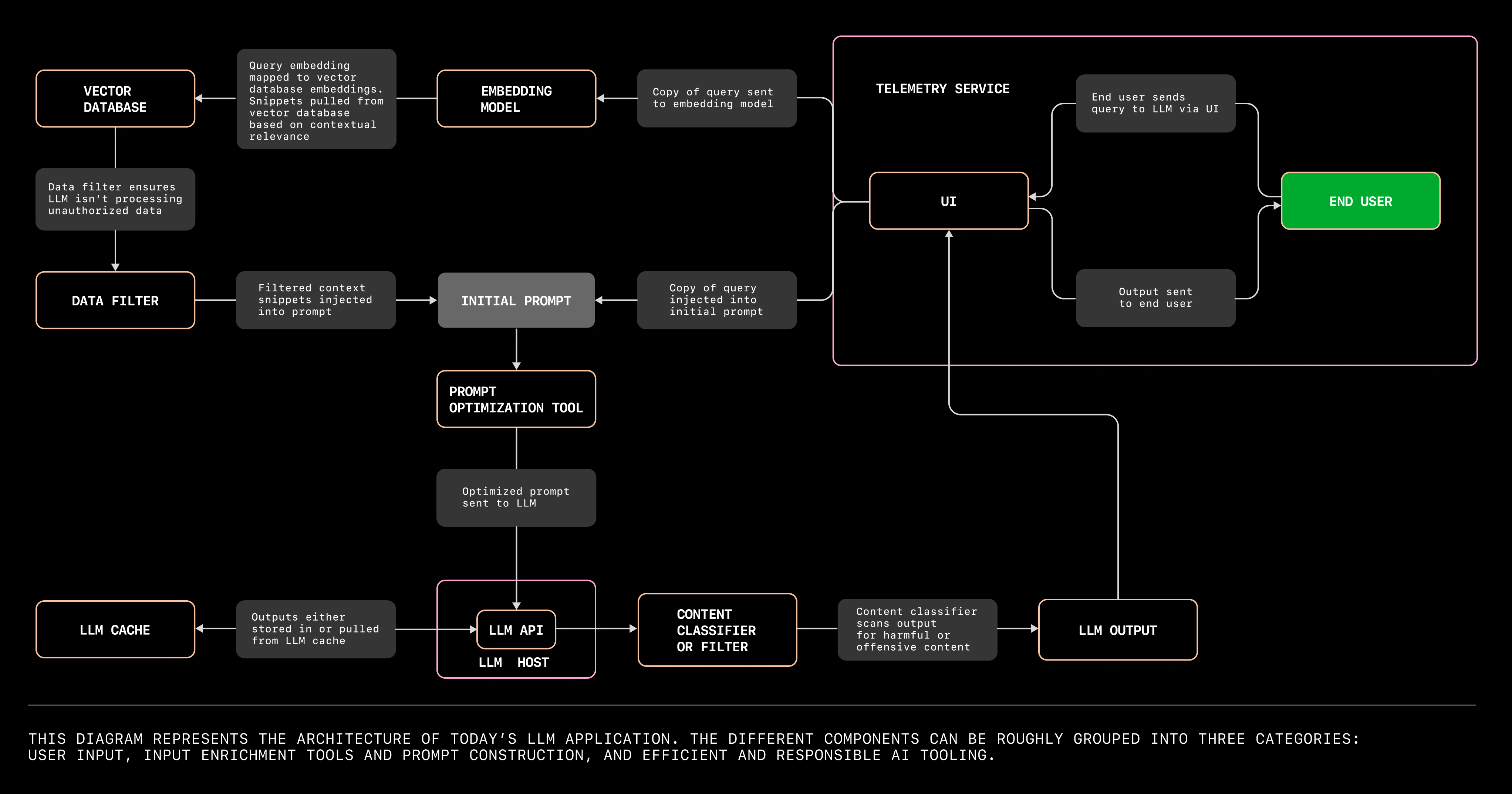
High-Level Architecture
At a high level, the app has three parts:

1. Frontend (Client)
-
HTML, CSS, and JavaScript
-
Collects user input
-
Sends requests to our backend
-
Displays AI responses
2. Backend (Server)
-
Node.js + Express
-
Exposes a
/api/chatendpoint -
Sends prompts to the LLM API
-
Keeps the API key secure
3. LLM Provider
-
OpenAI-compatible API
-
Processes prompts
-
Returns generated text
Request Flow (Step by Step)
Here’s what happens when a user sends a message:
-
User types a prompt in the browser
-
Frontend sends a POST request to
/api/chat -
Backend:
-
Validates the input
-
Calls the LLM API
-
Receives the response
-
-
Backend returns the AI reply to the frontend
-
Frontend displays the response
This clean separation is important:
-
The API key never leaves the server
-
The frontend remains lightweight
-
You can swap LLM providers later
Folder Structure
We’ll keep the project structure intentionally simple:
ai-app/
├── server/
│   ├── index.js        # Express server
│   ├── llm.js          # LLM API logic
│   ├── .env            # API keys (not committed)
│
├── client/
│   ├── index.html      # UI
│   ├── style.css       # Basic styling
│   └── app.js          # Frontend logic
│
├── Dockerfile
├── .gitignore
└── README.md
You’ll understand every file by the end of this tutorial.
Why This Architecture?
This setup is:
-
Beginner-friendly
-
Production-inspired
-
Easy to extend
Later, you can:
-
Add authentication
-
Store chat history in a database
-
Switch to React or Next.js
-
Add streaming responses
-
Add RAG (documents, PDFs, search)
But first, we build the foundation.
What We Are Not Doing (On Purpose)
To avoid confusion, we are not:
-
Training a model
-
Fine-tuning an LLM
-
Using vector databases (yet)
-
Using heavy frontend frameworks
This keeps the learning curve smooth and focused.
End Goal
By the end of this tutorial, you will have:
-
A working AI web app
-
A clear mental model of how AI apps are built
-
A deployable project you can share publicly
-
A strong base for more advanced AI features
Setting Up the Project (Node.js, Express, and Environment Variables)
Now it’s time to write some code. In this section, we’ll set up the backend server that will act as a bridge between the frontend and the LLM API.
We’ll keep everything clean, minimal, and easy to understand.
Step 1: Create the Project Folder
Start by creating a new project directory:
mkdir ai-llm-app
cd ai-llm-app
Initialize a Node.js project:
npm init -y
Step 2: Install Dependencies
We’ll use:
-
express – web server
-
dotenv – environment variables
-
node-fetch (or native fetch in Node 18+)
Install Express and dotenv:
npm install express dotenv
💡 If you’re using Node.js 18+, you can use the built-in
fetchand don’t neednode-fetch.
Step 3: Create the Server Structure
Create a server folder and main files:
mkdir server
touch server/index.js server/llm.js server/.env
Your structure should now look like:
ai-llm-app/
└── server/
    ├── index.js
    ├── llm.js
    └── .env
Step 4: Set Up Environment Variables
Open server/.env and add your LLM API key:
LLM_API_KEY=your_api_key_here
LLM_API_URL=https://api.openai.com/v1/chat/completions
⚠️ Important
-
Never commit
.envfiles -
Keep API keys on the server only
Add .env to .gitignore (create it if needed):
node_modules
server/.env
Step 5: Create a Basic Express Server
Open server/index.js:
import express from "express";
import dotenv from "dotenv";

dotenv.config();

const app = express();
const PORT = process.env.PORT || 3000;

app.use(express.json());

app.get("/health", (req, res) => {
  res.json({ status: "ok" });
});

app.listen(PORT, () => {
  console.log(`Server running on http://localhost:${PORT}`);
});
Enable ES Modules
To use import syntax, update package.json:
{
  "type": "module"
}
Step 6: Test the Server
Start the server:
node server/index.js
Open your browser and visit:
http://localhost:3000/health
You should see:
{ "status": "ok" }
✅ Your backend server is now running.
Step 7: Why Environment Variables Matter
Environment variables allow you to:
-
Keep secrets out of source code
-
Use different configs for dev vs production
-
Deploy safely to cloud platforms
Every production AI app relies on this pattern.
What’s Next?
We now have:
-
A working backend server
-
Secure configuration for API keys
-
A clean base to integrate the LLM
Connecting to an LLM API (First AI Response)
This is the moment where our app actually becomes an AI app.
In this section, we’ll connect our backend to an LLM API and get our first real response from a model.
No UI yet—just backend logic, so everything stays clear and debuggable.
Step 1: Create the LLM Helper Module
Open server/llm.js.
This file will handle all communication with the LLM, keeping our code clean and reusable.
export async function sendPrompt(messages) {
  const response = await fetch(process.env.LLM_API_URL, {
    method: "POST",
    headers: {
      "Content-Type": "application/json",
      "Authorization": `Bearer ${process.env.LLM_API_KEY}`
    },
    body: JSON.stringify({
      model: "gpt-4.1-mini",
      messages,
      temperature: 0.7,
      max_tokens: 300
    })
  });

  if (!response.ok) {
    const error = await response.text();
    throw new Error(error);
  }

  const data = await response.json();
  return data.choices[0].message.content;
}
Why This Design?
-
Keeps LLM logic in one place
-
Makes it easy to swap providers later
-
Keeps
index.jsclean
Step 2: Add a Chat API Endpoint
Now open server/index.js and update it:
import express from "express";
import dotenv from "dotenv";
import { sendPrompt } from "./llm.js";

dotenv.config();

const app = express();
const PORT = process.env.PORT || 3000;

app.use(express.json());

app.post("/api/chat", async (req, res) => {
  try {
    const { message } = req.body;

    if (!message) {
      return res.status(400).json({ error: "Message is required" });
    }

    const messages = [
      { role: "system", content: "You are a helpful AI assistant." },
      { role: "user", content: message }
    ];

    const reply = await sendPrompt(messages);

    res.json({ reply });
  } catch (err) {
    console.error(err);
    res.status(500).json({ error: "LLM request failed" });
  }
});

app.listen(PORT, () => {
  console.log(`Server running on http://localhost:${PORT}`);
});
Step 3: Test with curl or HTTP Client
Restart the server:
node server/index.js
Send a request using curl:
curl -X POST http://localhost:3000/api/chat \
  -H "Content-Type: application/json" \
  -d '{"message":"Explain REST APIs in simple terms"}'
Expected response:
{
  "reply": "REST APIs allow applications to communicate over HTTP by..."
}
🎉 You just built your first AI-powered backend endpoint.
Step 4: Common Issues & Fixes
401 Unauthorized
-
Check your API key
-
Confirm
.envis loaded -
Restart the server after changes
400 Bad Request
-
Make sure JSON is valid
-
Ensure
messageexists in the request body
Slow Responses
-
Normal for LLMs
-
Reduce
max_tokens -
Use smaller models
Step 5: Security Reminder
-
Never expose your API key to the frontend
-
Always proxy requests through your backend
-
Add rate limiting later (recommended)
What We Have Now
At this point:
-
Your backend talks to an LLM
-
You can generate AI responses via HTTP
-
The foundation of your AI app is complete
Building the Frontend (Simple Chat UI with HTML, CSS, and JavaScript)
Now that the backend is working, let’s build a simple chat-style frontend so users can actually interact with the AI.
We’ll keep it:
-
Framework-free
-
Easy to understand
-
Easy to extend later (React, Vue, etc.)
Step 1: Create the Client Folder
From the project root:
mkdir client
touch client/index.html client/style.css client/app.js
Your structure now looks like:
ai-llm-app/
├── server/
│   ├── index.js
│   ├── llm.js
│   └── .env
└── client/
    ├── index.html
    ├── style.css
    └── app.js
Step 2: Basic HTML Structure
Open client/index.html:
<!DOCTYPE html>
<html lang="en">
<head>
  <meta charset="UTF-8" />
  <title>AI Assistant</title>
  <link rel="stylesheet" href="style.css" />
</head>
<body>
  <div class="chat-container">
    <h1>AI Assistant</h1>

    <div id="messages" class="messages"></div>

    <form id="chat-form">
      <input
        type="text"
        id="user-input"
        placeholder="Ask something..."
        autocomplete="off"
        required
      />
      <button type="submit">Send</button>
    </form>
  </div>

  <script src="app.js"></script>
</body>
</html>
Step 3: Add Simple Styling
Open client/style.css:
body {
  font-family: system-ui, sans-serif;
  background: #f5f5f5;
  display: flex;
  justify-content: center;
  align-items: center;
  height: 100vh;
}

.chat-container {
  background: #fff;
  width: 400px;
  padding: 20px;
  border-radius: 8px;
  box-shadow: 0 4px 10px rgba(0, 0, 0, 0.1);
}

h1 {
  text-align: center;
  margin-bottom: 16px;
}

.messages {
  height: 300px;
  overflow-y: auto;
  border: 1px solid #ddd;
  padding: 10px;
  margin-bottom: 10px;
}

.message {
  margin-bottom: 8px;
}

.user {
  font-weight: bold;
}

.ai {
  color: #333;
}

form {
  display: flex;
  gap: 8px;
}

input {
  flex: 1;
  padding: 8px;
}

button {
  padding: 8px 12px;
  cursor: pointer;
}
Clean, readable, and functional—perfect for a first AI app.
Step 4: Frontend JavaScript Logic
Open client/app.js:
const form = document.getElementById("chat-form");
const input = document.getElementById("user-input");
const messagesDiv = document.getElementById("messages");

function addMessage(text, className) {
  const div = document.createElement("div");
  div.className = `message ${className}`;
  div.textContent = text;
  messagesDiv.appendChild(div);
  messagesDiv.scrollTop = messagesDiv.scrollHeight;
}

form.addEventListener("submit", async (e) => {
  e.preventDefault();

  const message = input.value.trim();
  if (!message) return;

  addMessage(`You: ${message}`, "user");
  input.value = "";

  try {
    const response = await fetch("http://localhost:3000/api/chat", {
      method: "POST",
      headers: { "Content-Type": "application/json" },
      body: JSON.stringify({ message })
    });

    const data = await response.json();
    addMessage(`AI: ${data.reply}`, "ai");
  } catch (err) {
    addMessage("AI: Something went wrong.", "ai");
  }
});
Step 5: Run the App
-
Start the backend:
node server/index.js -
Open
client/index.htmlin your browser
(or serve it via a simple static server) -
Type a prompt and hit Send
🎉 You now have a working AI chat application.
What You’ve Built So Far
At this point, you have:
-
A backend connected to an LLM
-
A frontend chat UI
-
Secure API key handling
-
A real, end-to-end AI app
This is already more than most “AI tutorials” deliver.
Limitations (For Now)
-
No conversation memory
-
No loading indicator
-
No streaming responses
-
No deployment yet
We’ll fix the important ones next.
Adding Conversation Memory (Basic Chat History)
Right now, our AI responds to each message in isolation.
That means it forgets everything the user said before—which doesn’t feel like a real chat.
In this section, we’ll add basic conversation memory so the AI can respond with context.
How Chat Memory Works (Simple Version)
Remember from Section 2:
-
LLMs are stateless
-
To simulate memory, we resend previous messages
So instead of sending just:
[{ role: "user", content: "Hello" }]We send:
[
  { role: "system", content: "You are a helpful assistant." },
  { role: "user", content: "Hello" },
  { role: "assistant", content: "Hi! How can I help?" },
  { role: "user", content: "Explain REST APIs" }
]
The model now understands the conversation so far.
Step 1: Store Chat History in Memory (Server-Side)
For this first version, we’ll store chat history in memory on the server.
⚠️ This is fine for demos and learning.
In production, you’d store this in a database or session store.
Step 2: Update the Backend to Keep History
Open server/index.js and modify it.
Add a simple in-memory store (per server)
At the top of the file:
const conversations = new Map();Update the /api/chat endpoint
Replace the existing endpoint with this version:
app.post("/api/chat", async (req, res) => {
  try {
    const { message, sessionId } = req.body;

    if (!message || !sessionId) {
      return res
        .status(400)
        .json({ error: "Message and sessionId are required" });
    }

    // Initialize conversation if not exists
    if (!conversations.has(sessionId)) {
      conversations.set(sessionId, [
        { role: "system", content: "You are a helpful AI assistant." }
      ]);
    }

    const history = conversations.get(sessionId);

    // Add user message
    history.push({ role: "user", content: message });

    // Send full history to LLM
    const reply = await sendPrompt(history);

    // Add AI reply to history
    history.push({ role: "assistant", content: reply });

    res.json({ reply });
  } catch (err) {
    console.error(err);
    res.status(500).json({ error: "LLM request failed" });
  }
});
Step 3: Update the Frontend to Send a Session ID
Now we need a way to identify a user’s conversation.
Generate a session ID in client/app.js
At the top of the file:
const sessionId = crypto.randomUUID();Update the fetch request
Modify the fetch call:
const response = await fetch("http://localhost:3000/api/chat", {
  method: "POST",
  headers: { "Content-Type": "application/json" },
  body: JSON.stringify({
    message,
    sessionId
  })
});
That’s it.
Step 4: Test Conversation Memory
Restart the server and refresh the browser.
Try this sequence:
-
User: “My name is Alex”
-
User: “What is my name?”
If everything works, the AI should respond correctly.
🎉 Your app now has conversation awareness.
Important Notes About This Approach
Pros
-
Extremely simple
-
Great for learning
-
Easy to reason about
Cons
-
Memory is lost on server restart
-
Not scalable for many users
-
Token usage grows over time
We’ll talk about improvements later.
Optional Improvement: Limit History Size
To avoid sending huge conversations:
if (history.length > 10) {
  history.splice(1, 2); // remove oldest user+assistant pair
}
This keeps memory short and costs low.
What You’ve Achieved
At this point, your app:
-
Feels like a real chat
-
Maintains conversational context
-
Uses core LLM chat patterns
This is a huge milestone.
Improving UX (Loading States, Errors, and Polishing the UI)
Our AI app works, but right now it feels a bit rough.
In this section, we’ll add small UX improvements that make a big difference in how professional the app feels.
No heavy frameworks—just good UI hygiene.
What We’ll Improve
-
Show a loading indicator while the AI is thinking
-
Handle errors more gracefully
-
Improve message styling for readability
-
Disable input while waiting for a response
Step 1: Add a Loading Indicator
Update client/index.html
Add this below the messages container:
<div id="loading" class="loading hidden">
  AI is thinking...
</div>
Update client/style.css
Add these styles:
.loading {
  font-style: italic;
  color: #666;
  margin-bottom: 8px;
}

.hidden {
  display: none;
}
Step 2: Improve Message Styling
Replace your .message, .user, and .ai styles with:
.message {
  margin-bottom: 8px;
  line-height: 1.4;
}

.user {
  font-weight: bold;
  color: #007bff;
}

.ai {
  color: #333;
}
This makes conversations easier to scan.
Step 3: Update Frontend Logic for UX
Open client/app.js and update it.
Grab the loading element
At the top:
const loadingDiv = document.getElementById("loading");Improve addMessage
function addMessage(text, className) {
  const div = document.createElement("div");
  div.className = `message ${className}`;
  div.textContent = text;
  messagesDiv.appendChild(div);
  messagesDiv.scrollTop = messagesDiv.scrollHeight;
}
(No change in behavior, just clarity.)
Update the submit handler
Replace the form submit handler with this:
form.addEventListener("submit", async (e) => {
  e.preventDefault();

  const message = input.value.trim();
  if (!message) return;

  addMessage(`You: ${message}`, "user");
  input.value = "";
  input.disabled = true;
  loadingDiv.classList.remove("hidden");

  try {
    const response = await fetch("http://localhost:3000/api/chat", {
      method: "POST",
      headers: { "Content-Type": "application/json" },
      body: JSON.stringify({
        message,
        sessionId
      })
    });

    if (!response.ok) {
      throw new Error("Server error");
    }

    const data = await response.json();
    addMessage(`AI: ${data.reply}`, "ai");
  } catch (err) {
    addMessage("AI: Sorry, something went wrong.", "ai");
  } finally {
    loadingDiv.classList.add("hidden");
    input.disabled = false;
    input.focus();
  }
});
Step 4: Test the UX Improvements
Reload the app and test:
-
Send a message → see “AI is thinking...”
-
Try fast multiple submissions → input is disabled
-
Stop the backend → graceful error message
The app now feels responsive and intentional.
What We’ve Achieved
At this point, your AI app:
-
Communicates clearly with users
-
Handles slow responses gracefully
-
Feels like a real product, not a demo
These small touches matter a lot.
What’s Still Missing?
-
Deployment (others can’t access it yet)
-
Production-ready configuration
-
Security and rate limiting
-
Optional enhancements (streaming, RAG, auth)
Let’s fix the biggest one next.
Deploying the AI App (Docker + Cloud Platform)
So far, your AI app runs locally. In this section, we’ll containerize it with Docker and deploy it to a cloud platform so anyone can access it.
The goal here is not platform-specific tricks, but a repeatable deployment pattern you can reuse for future AI apps.
Why Docker?
Docker lets you:
-
Package your app and dependencies together
-
Avoid “it works on my machine” issues
-
Deploy consistently to almost any cloud provider
Most AI platforms expect this setup.
Step 1: Prepare the Backend for Production
Update server/index.js
We need two small changes:
-
Enable CORS (frontend will be served separately)
-
Make the app cloud-friendly
Install CORS:
npm install corsUpdate server/index.js:
import cors from "cors";

app.use(cors());
That’s it.
Step 2: Create a Production Dockerfile
Create a Dockerfile in the project root:
FROM node:18-alpine

WORKDIR /app

COPY package*.json ./
RUN npm install --production

COPY server ./server

EXPOSE 3000

CMD ["node", "server/index.js"]
What This Does
-
Uses a lightweight Node.js image
-
Installs dependencies
-
Copies backend code
-
Runs the server on port 3000
Step 3: Add a .dockerignore File
Create .dockerignore:
node_modules
client
.git
.env
This keeps the image small and secure.
Step 4: Build and Run Locally with Docker
Build the image:
docker build -t ai-llm-app .Run the container:
docker run -p 3000:3000 --env-file server/.env ai-llm-appTest again with curl or the frontend.
If it works locally in Docker, it will work in the cloud.
Step 5: Deploy to a Cloud Platform (Example: Render)
You can deploy to Render, Railway, or Fly.io. The steps are similar everywhere.
Render Example
-
Push your project to GitHub
-
Go to Render → New → Web Service
-
Connect your repository
-
Choose:
-
Runtime: Docker
-
Port:
3000
-
-
Add environment variables:
-
LLM_API_KEY -
LLM_API_URL
-
-
Deploy
After a few minutes, you’ll get a public URL like:
https://your-ai-app.onrender.comStep 6: Update Frontend API URL
In client/app.js, replace:
fetch("http://localhost:3000/api/chat", ...)
With:
fetch("https://your-ai-app.onrender.com/api/chat", ...)
Re-upload the frontend (or host it on Netlify/Vercel).
Optional: Serve Frontend from Backend (Simple Setup)
For small apps, you can serve the frontend from Express:
app.use(express.static("client"));Then visit:
https://your-ai-app.onrender.comOne service, one URL.
What You’ve Achieved
You now have:
-
A containerized AI backend
-
A cloud-deployed LLM-powered app
-
A real public AI project you can share
This is a huge milestone.
Common Deployment Pitfalls
-
❌ Forgetting environment variables
-
❌ Hardcoding API keys
-
❌ Using
localhostin production -
❌ Not exposing the correct port
You’ve avoided all of them.
Production Tips & Next Steps (Security, Costs, and Scaling)
You now have a fully working, deployed LLM-powered app.
Before calling it production-ready, let’s cover the most important real-world considerations: security, cost control, performance, and how to grow this project further.
This section will help you avoid the most common mistakes new AI apps make.
1. Security Essentials (Non-Negotiable)
🔐 Protect Your API Keys
-
Never expose LLM API keys in the frontend
-
Always proxy LLM requests through your backend
-
Store keys in environment variables (you already did this ✔)
🚫 Add Basic Rate Limiting
Without rate limiting, your app can be abused and drain your API credits.
Example using express-rate-limit:
npm install express-rate-limitimport rateLimit from "express-rate-limit";
const limiter = rateLimit({
windowMs: 15 * 60 * 1000,
max: 100 // requests per IP
});
app.use("/api/", limiter);🧼 Validate User Input
Always sanitize inputs:
-
Limit prompt length
-
Reject empty or overly long requests
if (message.length > 500) {
  return res.status(400).json({ error: "Message too long" });
}
2. Cost Control (Very Important for LLM Apps)
LLMs are usage-based, so costs can scale fast if you’re careless.
💰 Control Token Usage
-
Limit conversation history
-
Set
max_tokens -
Use smaller models when possible
max_tokens: 200📉 Use Cheaper Models Where Possible
Not every request needs a top-tier model:
-
FAQs → cheaper models
-
Complex reasoning → stronger models
You can route requests dynamically later.
3. Performance & UX Improvements
⚡ Enable Streaming Responses
Streaming makes the AI feel much faster:
-
Send tokens as they’re generated
-
Improves perceived performance
(Advanced topic—perfect as a follow-up tutorial.)
🧠 Smarter Memory Management
Instead of sending full chat history:
-
Summarize older messages
-
Store summaries instead of raw text
This reduces tokens and keeps context.
4. Scaling the App
📦 Move from In-Memory to Persistent Storage
For real users:
-
Use Redis, PostgreSQL, or MongoDB
-
Store conversations per user/session
👥 Add Authentication
Common approaches:
-
Email/password
-
OAuth (Google, GitHub)
-
API keys for B2B usage
Auth enables:
-
Per-user quotas
-
Personalized memory
-
Better analytics
5. Monitoring & Logging
You should always know:
-
How many requests you’re sending
-
How much tokens cost per day
-
Where errors happen
Add:
-
Request logs
-
Error tracking (Sentry)
-
Basic usage metrics
6. Powerful Next Features to Build
Once you’re comfortable, extend this project with:
📄 RAG (Retrieval-Augmented Generation)
-
Upload PDFs or documents
-
Answer questions from private data
-
Use embeddings + vector databases
🔄 Tool Calling / Function Calling
-
Let the AI call APIs
-
Trigger backend actions
-
Build real AI agents
🖥️ Better Frontend
-
Migrate to React / Next.js
-
Add message streaming
-
Dark mode, chat history, avatars
Final Takeaways
You started with zero AI experience and built:
-
A working LLM-powered backend
-
A clean chat frontend
-
Conversation memory
-
A deployed AI application
You now understand:
-
How AI apps really work
-
How to control costs and security
-
How to scale beyond a demo
This puts you ahead of most developers exploring AI today.
You can get the full source code on our GitHub.
That's just the basics. If you need more deep learning about AI, ML, and LLMs, you can take the following cheap course:
- The AI Engineer Course 2025: Complete AI Engineer Bootcamp
- The Complete AI Guide: Learn ChatGPT, Generative AI & More
- The Complete Agentic AI Engineering Course (2025)
- Generative AI for Beginners
- Complete Data Science,Machine Learning,DL,NLP Bootcamp
- Complete MLOps Bootcamp With 10+ End To End ML Projects
- AI & ML Made Easy: From Basic to Advanced (2025)
- Machine Learning for Absolute Beginners - Level 1
- LLM Engineering: Master AI, Large Language Models & Agents
- A deep understanding of AI large language model mechanisms
- Master LLM Engineering & AI Agents: Build 14 Projects - 2025
- LangChain- Develop AI Agents with LangChain & LangGraph
Thanks!